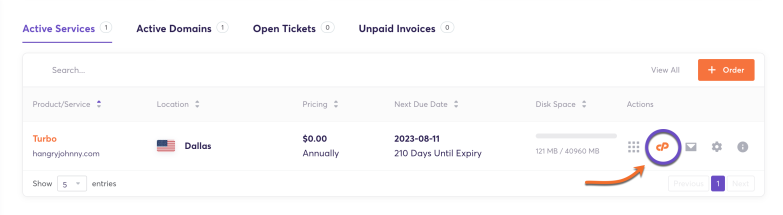
Step 1: Log in to your cPanel. There are many ways to do this, but the sure-fire easiest way is to log in to your Client Area, then open your cPanel.
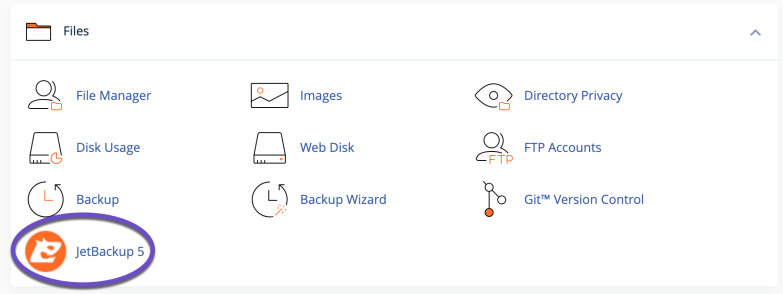
Step 2: Once you’ve logged in, scroll down through your cPanel and find the Files section, then open JetBackup 5.
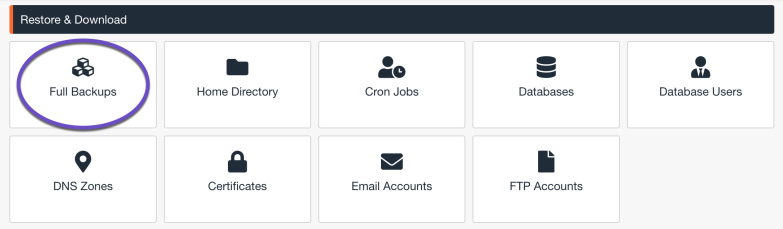
Step 3: Once Jetbackup 5 interface opens, search for the Restore & Download option and click Full Backups
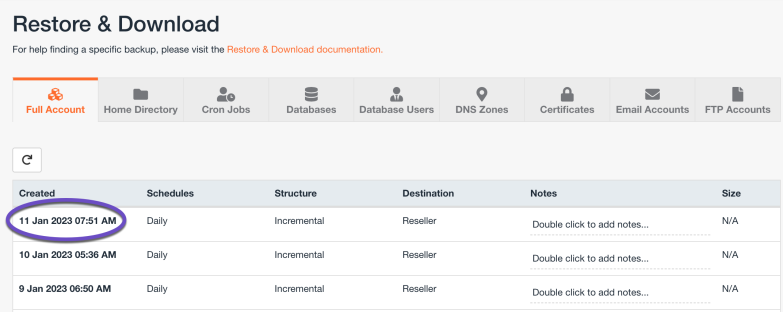
Step 4: The Full account backup restore option will open. Choose the backup date you want to restore by clicking on it, then scroll down the page and click on the Download button.
Step 5: You will be presented with a list of Items To Download. To download everything part of a cPanel Account, leave all these selected, then click Download Selected Items.
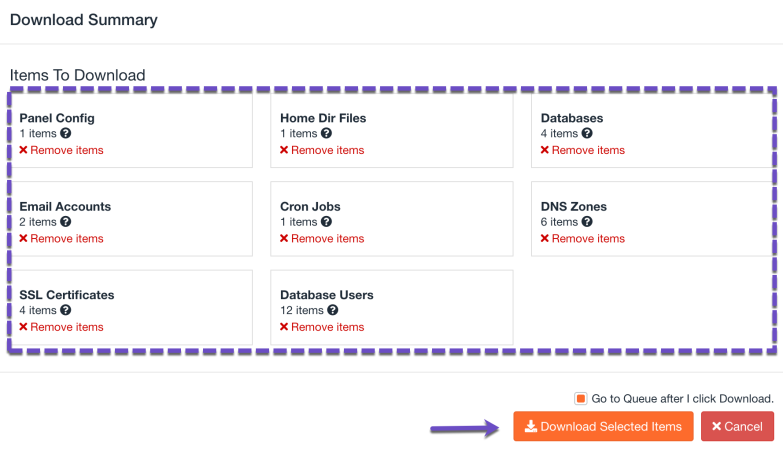
Step 6: The selected account will be queued for download. You will see a success notification in the top right corner.
Step 7: Click the Downloads button on the left menu to access your downloads.
After clicking Downloads, a page will open with your downloads available.
Just look for the download you want to save to your computer and click the Download button. The file will be saved to your computer.
]]>JetBackup is a tool available in your cPanel which provides a powerful set of backup and recovery solutions.
Our systems have been fully automated to create remote (off-site) backups for you, making this process super easy! We take daily off-site backups (around midnight) of your data and store them up to a certain number of days, based on your hosting plan.
JetBackup is a feature ChemiCloud has added into your cPanel at no extra cost for our Web Hosting, WordPress Hosting, and Reseller Hosting plans.
If you are on a VPS Hosting plan, you can get the daily remote backups service at an additional cost.
Files and Folders Not Being Backed-up by JetBackup
While JetBackup generally performs backups for any files or folders, there are exceptions of files and folders that are excluded as there are specific limitations across various filesystems and storage destinations that can cause unintended issues with your backups. This list is not exhaustive and is meant to help avoid errors regarding your backups.
*.gz
*.jpa
*.log
*.bkup
*.sql
*.tar
*.tar.gz
*.zip
backup-*.tar.gz
site-*.tar.gz
cpmove-*.tar.gz
access-logs/*
*/backupbuddy_backups/*
*/cache/smarty/*
.cagefs
.cagefs*
*/com_akeeba/backup/*
*/core.[0-9]*
*/error_log
logs/*
tmp/*
public_html/cache/*
softaculous_backups/*
*/wp-content/cache/*
*/wp-content/uploads/wpcf7_captcha/*
*/wp-content/widget-cache/*
*.wpress
*/wptsc-cachedir/*
*/.wysiwygPro_*
]]>
What is JetBackup?
JetBackup is a tool available in your cPanel that provides powerful backup and recovery solutions.
Our systems have been fully automated to create remote (off-site) backups for you, making this process super easy! We take daily off-site backups (around midnight) of your data and store them for up to a certain number of days based on your hosting plan.
JetApps recently released JetBackup 5 to the EDGE tier. This release summarizes core bug fixes, plugin updates, additional features, and some GUI updates!
Sleep like a baby with ChemiCloud’s nine different backup options for your sites through JetBackup.  Check out our web hosting plans!
What are the restore options available in JetBackup 5?
JetBackup 5 provides users with nine different options for creating backups in their cPanel and can be found in the Files section of your cPanel.
cPanel Configuration, Home Directory, Cron Jobs, Databases, Database Users, DNS Zones, SSL Certificates, Email Accounts, FTP Accounts.
In this tutorial, we’ll review the details and how to use the most popular and frequently used JetBackup Options:
- Full Account Backups.
- File Backups.
- Database Backups.
- Email Backups.
Before we begin, let’s break down some information you will see along with the backup and restore process.
What’s an Incremental Backup?
Incremental backups are a type of backup wherein only information that has changed is backed up, versus creating a full backup each time.
Let’s speculate and say your website is configured as follows:
- Your website is a WordPress site with lots of photo galleries.
- The total amount of data in your account, including all images, WordPress installations, databases, and email in your mailbox, is 5 GB.
- You set a schedule to back up your website every night at midnight.
- Your web hosting provider gives you 20 GB of disk space.
If you have, for example, a WordPress site with many photo galleries that total 5 Gigabytes (GB) and used a full backup instead of incremental backup, your backups will have consumed 20 GB of space after five days. You wouldn’t be able to upload new content to your website.
By using an incremental backup, your backup sizes only grow when you add content instead of being (essentially) cloned or duplicated in full as part of your backup schedule.
What does Location – Remote mean?
ChemiCloud has configured your automated backups to be stored on a separate group of servers in a different location than the server hosting your websites and storing your e-mails. This is done for recovery purposes. Having these remote/off-site backups keeps your information safe and sound, so you can rest easy!
How to Download or Restore Full Account Backups using JetBackup 5
Restoring a Full Account Backup
Step 1: Log in to your cPanel. There are many ways to do this, but the sure-fire easiest way is to log in to your Client Area, then open your cPanel.
Step 2: Once you’ve logged in, scroll down through your cPanel and find the Files section, then open JetBackup 5.
Step 3: Once Jetbackup 5 interface opens, search for the Restore & Download option and click Full Backups
Step 4: The Full account backup restore option will open. Choose the backup date you want to restore by clicking on it, then scroll down the page and click on the Restore button.
Step 5: You will be presented with a list of Items To Restore. To restore everything that is part of a cPanel Account, leave all these selected, then click Restore Selected Items.
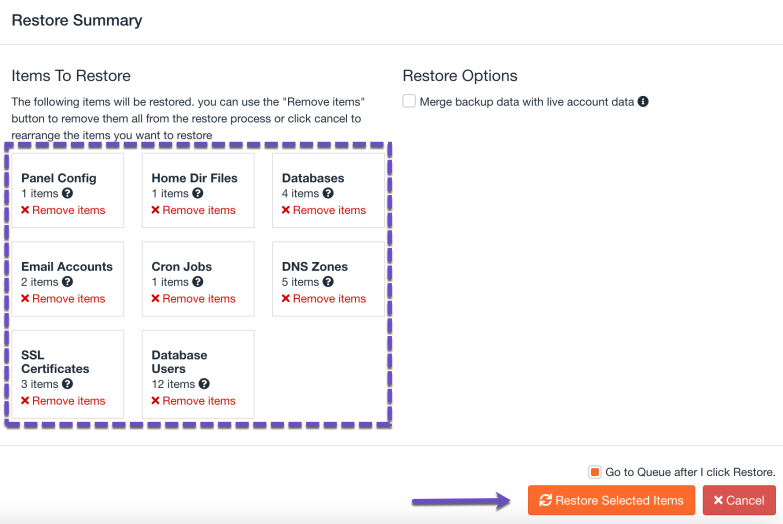
The Merge backup data with live account data option comes in handy if you’d like to preserve existing data on the account and merge it with the existing data from the date you’re restoring it.
Step 6: The selected account will be queued for restoration. You will see a success notification in the top right corner.
However, unlike a Download, a Restore takes place behind the scenes. To check the status of the Restore, you’ll need to open the Queue. Click the Queue icon, the last icon from the row of tools on the left.
How to Download a Full Account Backup
Step 1: Log in to your cPanel. There are many ways to do this, but the sure-fire easiest way is to log in to your Client Area, then open your cPanel.
Step 2: Once you’ve logged in, scroll down through your cPanel and find the Files section, then open JetBackup 5.
Step 3: Once Jetbackup 5 interface opens, search for the Restore & Download option and click Full Backups
Step 4: The Full account backup restore option will open. Choose the backup date you want to restore by clicking on it, then scroll down the page and click on the Download button.
Step 5: You will be presented with a list of Items To Download. To download everything part of a cPanel Account, leave all these selected, then click Download Selected Items.
Step 6: The selected account will be queued for download. You will see a success notification in the top right corner.
Step 7: Click the Downloads button on the left menu to access your downloads.
After clicking Downloads, a page will open with your downloads available.
Just look for the download you want to save to your computer and click the Download button. The file will be saved to your computer.
How to Restore Files using JetBackup 5
Step 1: Log in to your cPanel. There are many ways to do this, but the sure-fire easiest way is to log in to your Client Area, then open your cPanel.
Step 2: Once you’ve logged in, scroll down through your cPanel and find the Files section, then open JetBackup 5.
Step 3: Once Jetbackup 5 opens, click Home Directory to open the file restoration tool.
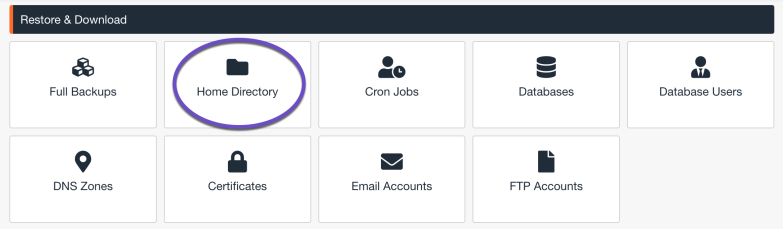
Step 4: After clicking Home Directory, you will be given a list of backups. In my example, I’m going to restore from the latest backup, so I will choose the backup at the top by clicking on it.
Step 5: You’ll note the selection turns orange and a button has appeared. To select the files or folders I want to restore, you need to click the Change File Selection button.
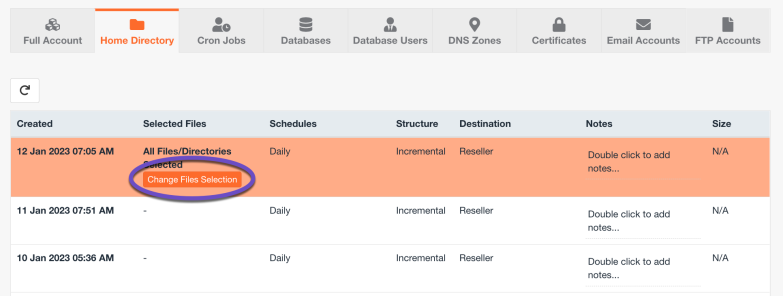
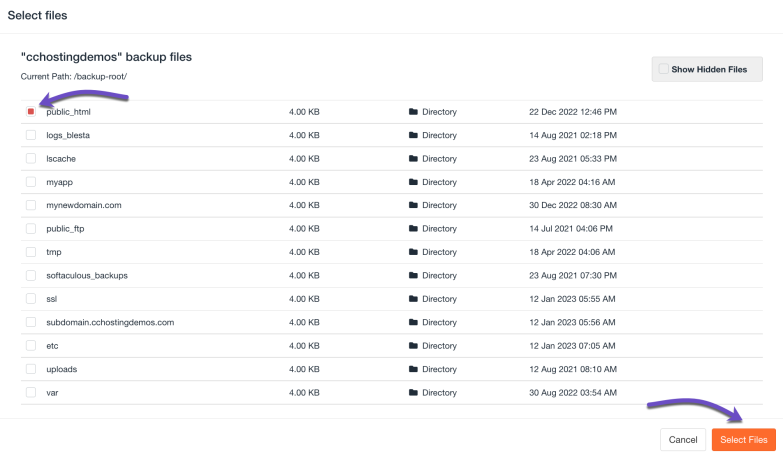
Step 6: After clicking that button, a modal will appear, or you will be presented with a list of folders and files in your home directory.
Step 7: Click through these folders until you locate the file or folders you want to restore. Once you’ve located the folder, you’ll tick the checkbox to the left of the folder in the bottom right of the modal and click Select Files.
In my example, I will restore all the files inside the public_html directory, which belongs to my primary domain. If you’re restoring the files belonging to an addon domain, here’s a guide on finding the document root of your site.
Step 7: After clicking that button, the modal will disappear. Now scroll down the page and look for the two options to Restore or Download these files. Depending on what you want to do, you can choose an option here.
I want to restore, so I’m going to click Restore. However, if you want to download these files, you can click download, and they will be made available to you as a zip file.
Step 8: After clicking Restore, a modal will appear, asking you to confirm the restoration. Just click the Restore selected items button.
Step 9: To access the queue, look for the Queue option on the Jet Backup homepage.
The restore you requested should be listed, and you will be able to see the progress of the restore in real-time beneath the Status column. You also have the option to cancel the queued recovery if you wish. In my case, I’m going to leave this as is, and as you can see it is already completed. Once completed, you will see the status column has been changed to complete.
This means that recovery was successful, and everything has been put back the way it was on the date you chose for the recovery.
And that’s how you use the File Recovery feature in JetBackup 5!
How to Download or Restore Database Backups using JetBackup 5
JetBackup 5 keeps copies of your Databases safe and sound just in case you need to recover one. This feature could be handy if you installed a WordPress plugin that corrupted your site; for example, the only option is to restore the Database to a time before that plugin was installed.
How to Restore a Database Backup
Step 1: Log in to your cPanel. There are many ways to do this, but the sure-fire easiest way is to log in to your Client Area, then open your cPanel.
Step 2: Once you’ve logged in, scroll down through your cPanel and find the Files section, then open JetBackup 5.
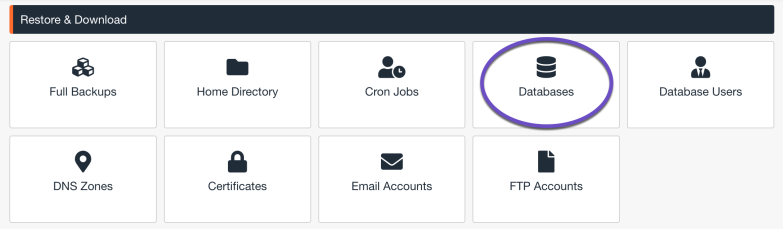
Step 3: Once Jetbackup 5 opens, click Databases to open the file restoration tool.
Step 4: After clicking Databases, you will be given a list of available database backups. In my example, I’m going to restore a database called “cchostingdemos_8” from the latest backup, so I will choose the backup at the top by clicking on it. If you’re using WordPress, here’s a helpful guide on how to find the name of your WordPress database.
If you need to choose another date for the Backup, click “Choose Other Backup.”
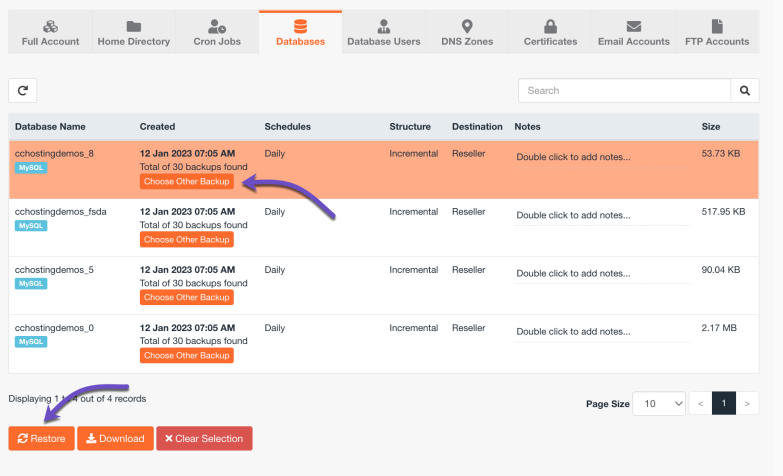
When you’re ready to restore the Database, click the Restore button.
On the next screen, you’ll be presented with a list of items to restore. Click the “Restore Selected Items” button to restore the Database.
Step 7: The Database will be queued for restoration.
However, unlike a Download, a Restore takes place behind the scenes. To check the status of the Restore, you’ll need to open the Queue. Click the Queue icon, the last icon from the row of tools on the left.
And that is how you restore a database from a backup!
How to Download a Database from Backup
Step 1: Log in to your cPanel. There are many ways to do this, but the sure-fire easiest way is to log in to your Client Area, then open your cPanel.
Step 2: Once you’ve logged in, scroll down through your cPanel and find the Files section, then open JetBackup 5.
Step 3: Once Jetbackup 5 opens, click Databases to open the file restoration tool.
Step 4: After clicking Databases, you will be given a list of available database backups. In my example, I’m going to download a database called “cchostingdemos_8” from the latest backup, so I will choose the backup at the top by clicking on it. If you’re using WordPress, here’s a helpful guide on how to find the name of your WordPress database.
If you need to choose another date for the Backup, click “Choose Other Backup.”
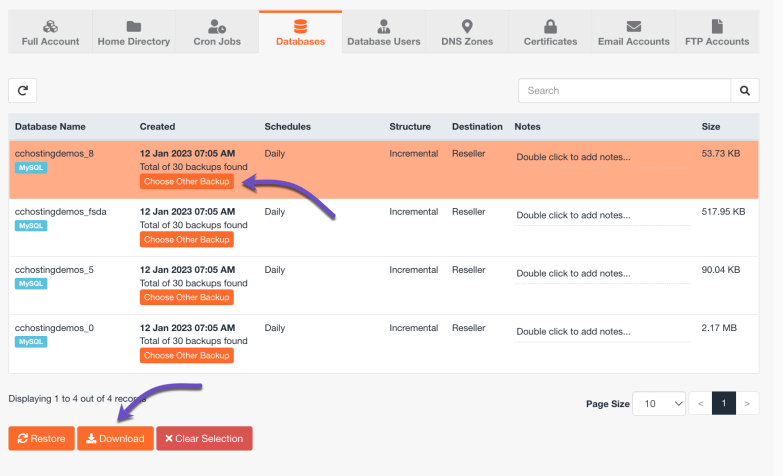
When you’re ready to restore the Database, click the Download button.
You will be presented with a list of Items to Download, then click Download Selected Items.
Step 5: After you click Download Selected Items, you’ll be returned to the Queue screen.
Step 6: Click the Downloads button on the left menu to access your downloads.
After clicking Downloads, a page will open with your downloads available.
Just look for the download you want to save to your computer and click the Download button. The file will be saved to your computer.
How to Download or Restore Email Backups
We’ve all been there. Whether you deleted the email containing the address to the place where you’re having a job interview, an email with a bunch of photos from your Grandkids, or those client files, worry no more because, with JetBackup 5, you can recover those messages!
How to Restore an Email Account from Backup
Step 1: Log in to your cPanel. There are many ways to do this, but the sure-fire easiest way is to log in to your Client Area, then open your cPanel.
Step 2: Once you’ve logged in, scroll down through your cPanel and find the Files section, then open JetBackup 5.
Step 3: Once Jetbackup 5 opens, click Email accounts to open the file restoration tool.
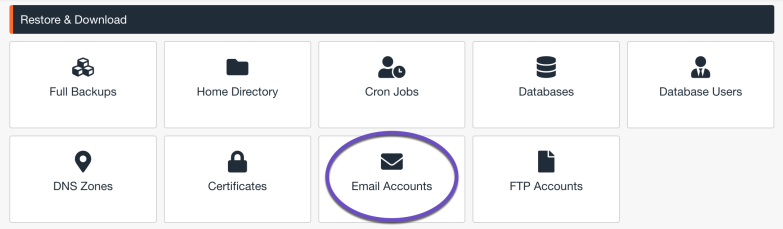
Step 4: After clicking Email accounts, you will be given a list of available email accounts backups. In my example, I’m going to restore an email account called “[email protected]” from the latest backup, so I will choose the backup at the top by clicking on it.
If you need to choose another date for the Backup, click “Choose Other Backup.”
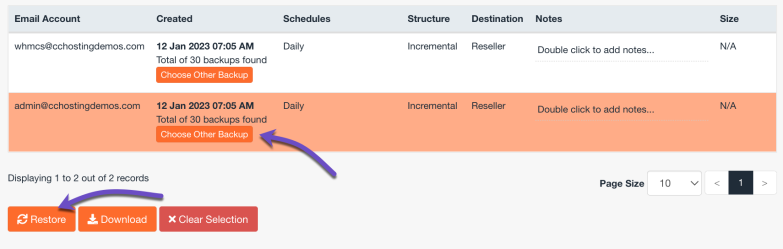
When ready to restore the email address, click the Restore button.
On the next screen, you’ll be presented with a list of items to restore. Click the “Restore Selected Items” button to restore the email account.
Step 5: The Restore will be queued for restoration.
However, unlike a Download, a Restore takes place behind the scenes. To check the status of the Restore, you’ll need to open the Queue. Click the Queue icon, the last icon from the row of tools on the left.
Step 6: Once the Queue is open, you will see a list of tasks. As you can see from the list below, the Restore I requested in the previous step has already been completed.
And that is how you restore an email account from a backup!
How to Download an Email Account from Backup
Step 1: Log in to your cPanel. There are many ways to do this, but the sure-fire easiest way is to log in to your Client Area, then open your cPanel.
Step 2: Once you’ve logged in, scroll down through your cPanel and find the Files section, then open JetBackup 5.
Step 3: Once Jetbackup 5 opens, click Email accounts to open the file restoration tool.
Step 4: After clicking Email accounts, you will be given a list of available email account backups. In my example, I’m going to download a backup of an email account called “[email protected]” from the latest backup, so I will choose the backup at the top by clicking on it.
If you need to choose another date for the Backup, click “Choose Other Backup.”
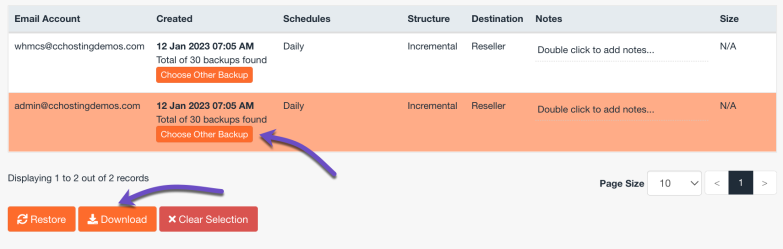
When ready to restore the email address, click the Download button.
On the next screen, you’ll be presented with a list of items to generate a download. Click the “Download Selected Items” button to restore the email account.
Step 5: Click the Downloads button on the left menu to access your downloads.
After clicking Downloads, a page will open with your downloads available.
Just look for the download you want to save to your computer and click the Download button. The file will be saved to your computer.
And that is how you download an email account from backup!
Conclusion
JetBackup 5 provides practical tools for backing up (for offline storage) and restoring full accounts, individual files and folders, databases, email accounts, and more.
If you have any questions about using one of the options in your JetBackup section of cPanel, especially if you are considering using the restore feature, reach out to our live chat support to have your questions answered!
]]>In this tutorial, we will cover how to make use of the integrated backup and restore features of Softaculous by creating a backup, downloading the backup, and restoring from a backup.
How to Create a Backup in Softaculous
Creating your backup is quite easy!
Step 1: Login to your cPanel.
While there are a number of ways to login to WHM, the sure-fire easiest way is to access cPanel by logging into your Client Area.
Step 2: After you’ve opened your cPanel, scroll down to the Software Section and click Softaculous Apps Installer. It will open in a new tab.
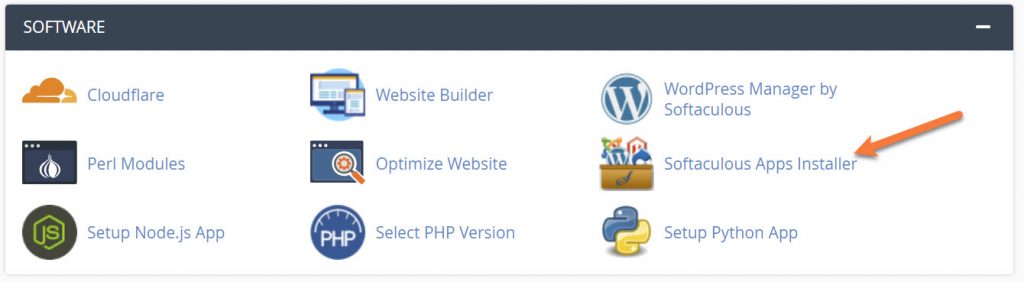
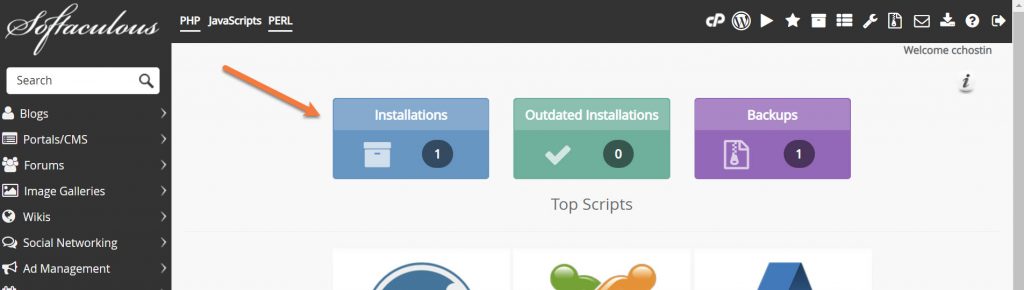
Step 3: From the Softaculous Home Page, click Installations to show all app installations.
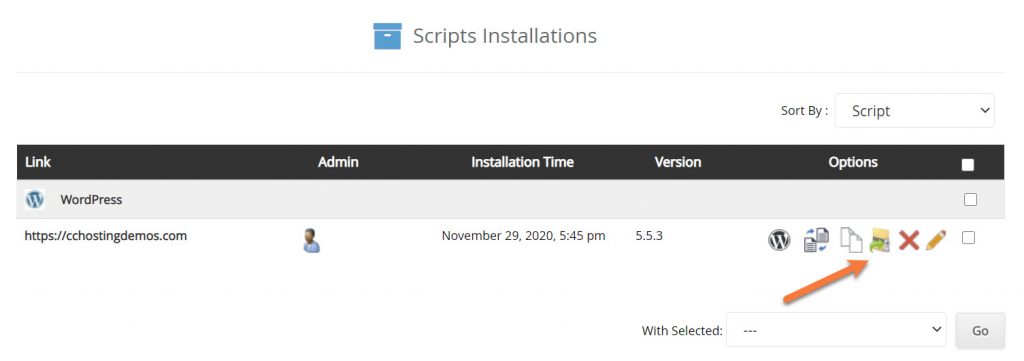
Step 4: In the list of websites / apps you have installed, find the one you want to backup and on the right side under Options, find and select the Backup option.
Step 5: You will be given a list of options for your Backup. You also have the option to enter a note for the backup. This is useful if you plan to install a plugin and are taking a backup before installing, you could name “Site before “x” Plugin Installed” to make it easier to identify should you need to restore from this backup.
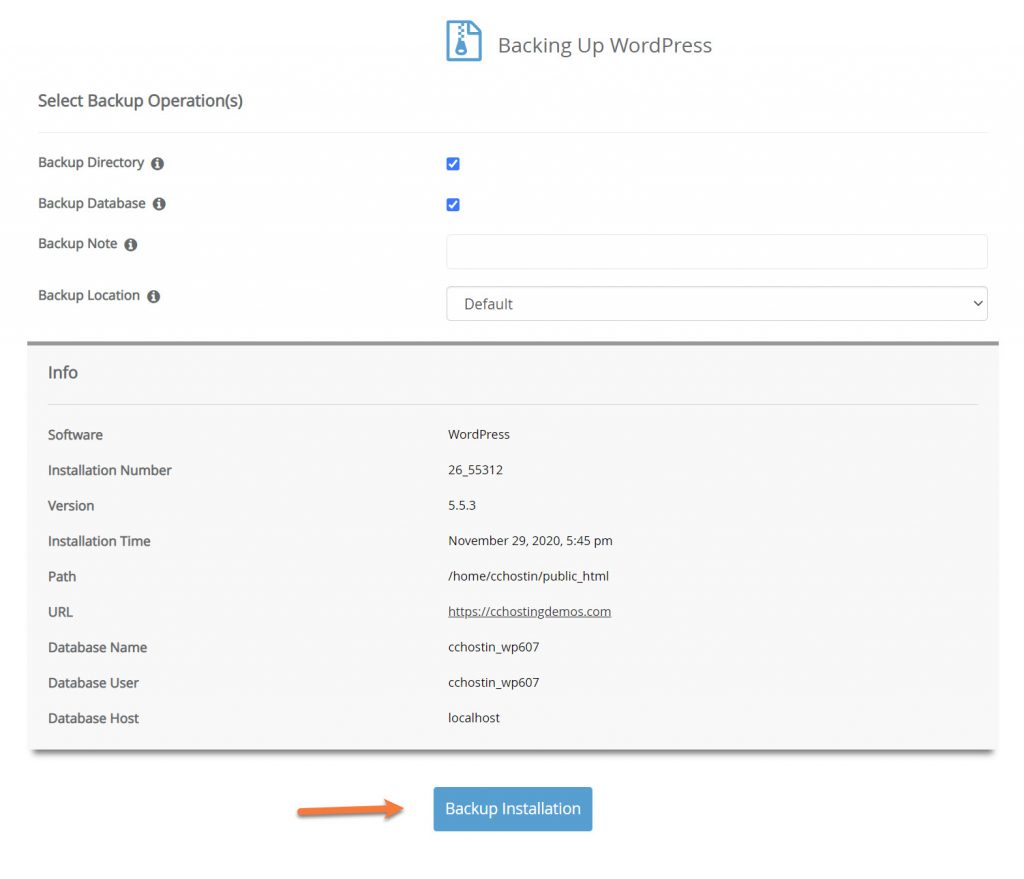
For the most part, the other settings do not need to be configured. To create your backup, just click the blue Backup Installation button.
Sleep like a baby with ChemiCloud’s nine different backup options for your sites through JetBackup. Check out our web hosting plans!
Softaculous will create the backup and place it in the Backups area. You will be given the option to return to the Softaclous home screen. That’s it! Now you’ve made a backup.
Download a Backup in Softaculous
Downloading a Backup of your site you’ve created using Softaculous is just as easy as making a backup!
Step 1: Login to your cPanel.
While there are a number of ways to login to WHM, the sure-fire easiest way is to access cPanel by logging into your Client Area.
Step 2: After you’ve opened your cPanel, scroll down to the Software Section and click Softaculous Apps Installer. It will open in a new tab.
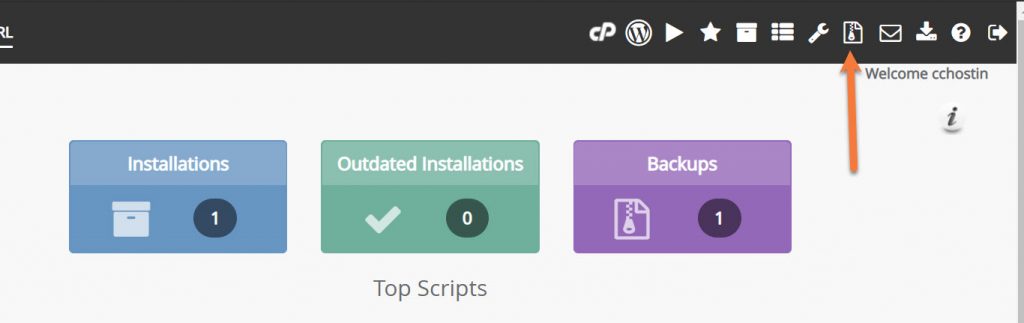
Step 3: From the Softaculous Home Page, click the Backups Icon in the top right corner. You will be taken to your Backups area
Step 4: In the list of backups, find the one you want to download and click the blue download arrow on the right side to save the backup file to your computer.
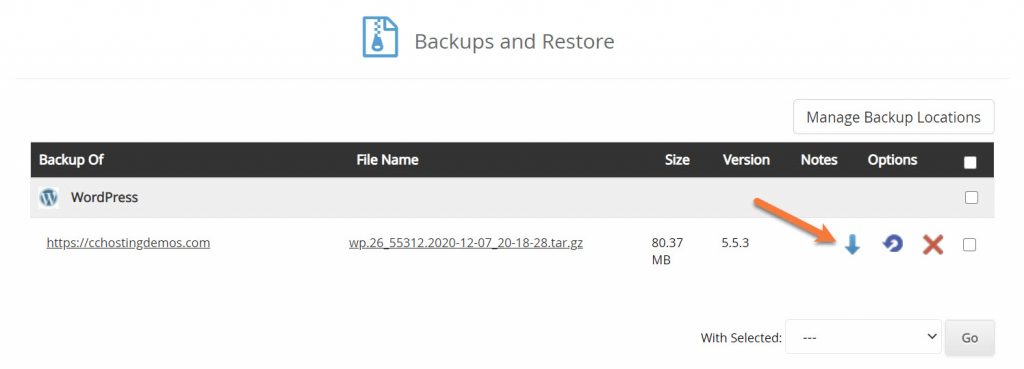
The file will be saved to your computer. That’s it! Now you’ve downloaded a backup.
Restore From a Backup in Softaculous
Did you install a plugin that broke your site? Make a change you didn’t mean to? No worries! If you made a backup in Softaculous, you can recover from that backup easily and quickly!
Step 1: Login to your cPanel.
While there are a number of ways to login to WHM, the sure-fire easiest way is to access cPanel by logging into your Client Area.
Step 2: After you’ve opened your cPanel, scroll down to the Software Section and click Softaculous Apps Installer. It will open in a new tab.
Step 3: From the Softaculous Home Page, click the Backups Icon in the top right corner. You will be taken to your Backups area.
Step 4: In the list of backups, find the one you want to restore and click the purple restore arrow to restore it.
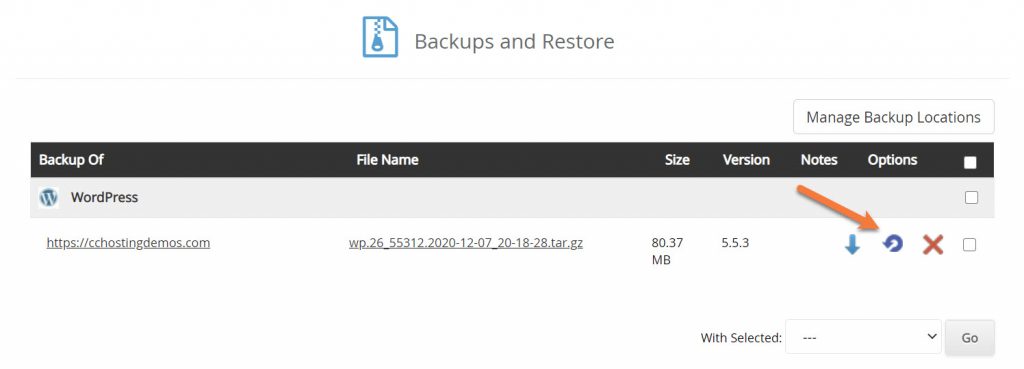
That’s it! Now your site should be recovered from whatever error or mistake you made!
We hope you find this Knowledgebase article helpful! You’ll find our Hosting to be just as good!
]]>JetBackup is a tool available in your cPanel which provides a powerful set of backup and recovery solutions.
Our systems have been fully automated to create remote (off-site) backups for you, making this process super easy! We take daily off-site backups (around midnight) of your data and store them up to a certain number of days, based on your hosting plan.
JetBackup is a feature ChemiCloud has added into your cPanel at no extra cost for our Web Hosting, WordPress Hosting, and Reseller Hosting plans. If you are on a VPS Hosting plan, you can get the daily remote backups service at an additional cost.
Characters to Avoid When Naming Files and Folders (JetBackup)
While JetBackup supports almost any characters for filenames (UTF-8), there are special characters/symbols that are generally best avoided as there are specific limitations across various filesystems and storage destinations which can cause unintended issues with your backups.
This list is not exhaustive and is meant to help determine and avoid errors regarding filenames and your backups.
| # pound | % percent | & ampersand | { left curly bracket |
|---|---|---|---|
| } right curly bracket | \ back slash | < left angle bracket | > right angle bracket |
| * asterisk | ? question mark | / forward slash | blank spaces |
| $ dollar sign | ! exclamation point | ‘ single quotes | ” double quotes |
| : colon | @ at sign | + plus sign | ` backtick |
| | pipe | = equal sign |
JetApps recently released JetBackup 5 to the stable tier. If you’re using JetBackup 5 interface, please check out this tutorial.
What is JetBackup?
JetBackup is a tool available in your cPanel which provides a powerful set of backup and recovery solutions.
Our systems have been fully automated to create remote (off-site) backups for you, making this process super easy! We take daily off-site backups (around midnight) of your data and store them up to a certain number of days, based on your hosting plan.
What options are available in JetBackup?
JetBackup provides users with 6 different options for creating backups in their cPanel and can be conveniently located in it’s own section of your cPanel under “JetBackup”.
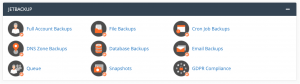
- Full Account Backups
- File Backups
- Cron Job Backups
- DNS Zone Backups
- Database Backups
- Email Backups
Below in this article, we’ll review the details and what is possible for the most popular and frequently used JetBackup Options: Full Account Backups, File Backups, and Database Backups.
Before we start, let’s break down some information that you will see along the backup restores process.
What’s an Incremental Backup?
Incremental backups are a type of backup wherein only information that has changed is backed up, versus creating a full backup each time. Let’s speculate and say your website is configured as follows:
- Your website is s WordPress site with lots of photo galleries.
- The total amount of data in your account, including all images, WordPress installations, databases, and email in your mailbox is 5 GB.
- You set a schedule to backup your website in full every night at midnight.
- Your web hosting provider gives you 20 GB of disk space.
If you have, for example, a WordPress site with a lot of photo galleries that total 5 Gigabytes (GB) and you used a full backup instead of incremental backup, your backups will have consumed 20 GB of space after 5 days, and you wouldn’t be able to upload new content to your website.
By using an incremental backup, your backup sizes only grow when you add content instead of being (essentially) cloned or duplicated in full as part of your backup schedule.
What does Location – Remote mean?
ChemiCloud has configured your automated backups to be stored on a separate group of servers in a different location than the server hosting your websites and storing your e-mails. This is done for recovery purposes. Having these remote/off-site backups keeps your information safe and sound so you can rest easy!
How to restore Full Account Backups
1) The first step would be to log into your cPanel.
2) Once logged in, go to JetBackup and click on the Full Account Backups icon.
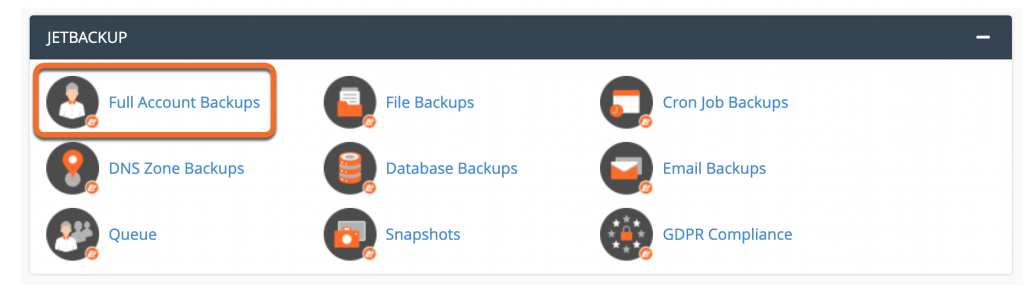
3) In the next window, you will be able to choose your desired restore point (date) and the backup to restore from.
4) To restore a full account backup, click on the Restore button.
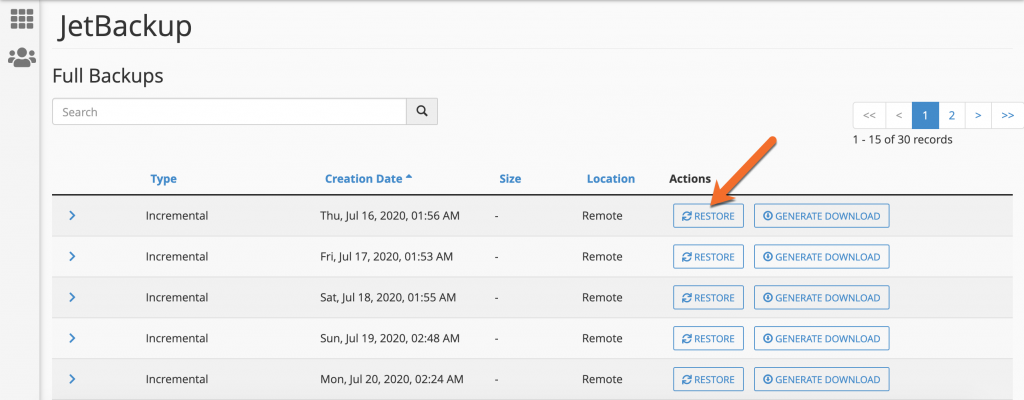
5) Once the full backup is initiated, you can view the progress from cPanel’s dashboard > JetBackup > Queue.
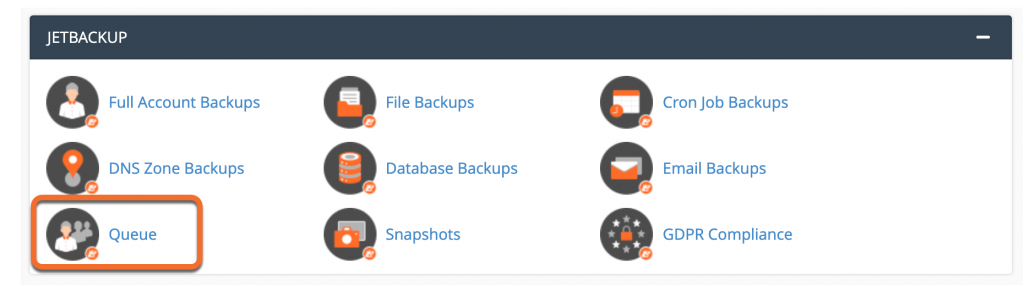
6) Wait the restore job to finish.
The queue status “Completed” means that the restore has been successful. If you get the queue status “Failed” you may try another date, or you may contact our Support.
Downloading a Full Backup
This feature comes in handy in case you’d like to download a full backup of your account and save it into your computer. Let’s download one of our backups!
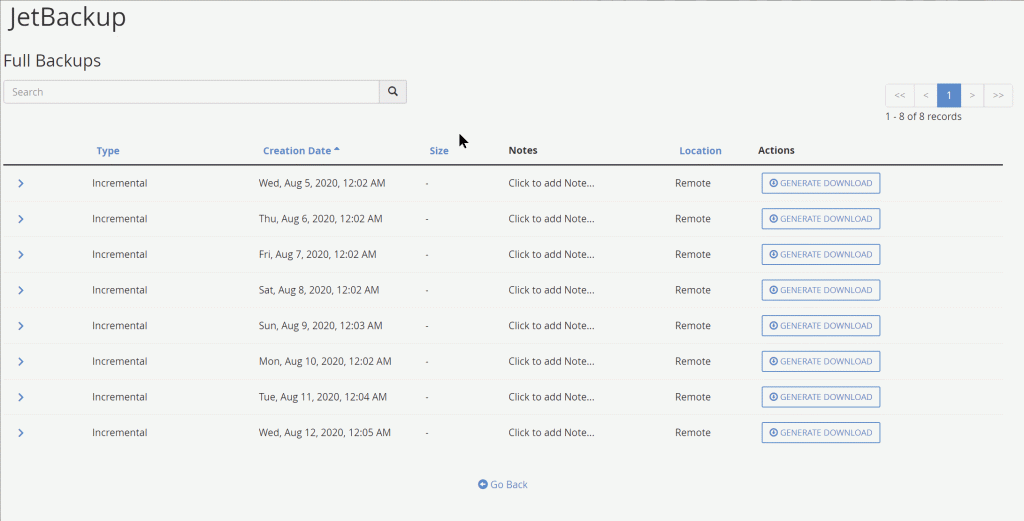
1) First, click Generate Download from the far right column. This will instruct JetBackup to reach out to our off-site backup servers and fetch your backup files.
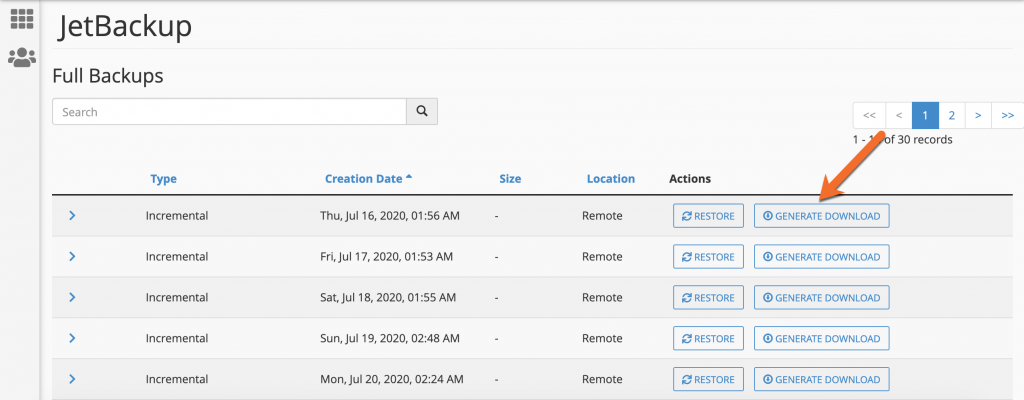
2) Once the full backup is initiated, you can view the progress from cPanel’s dashboard > JetBackup > Queue.
After a few moments, once the backup has been completed, you will see the option to Download the Backup button.
4) Click this to download and save your backup file to your computer.
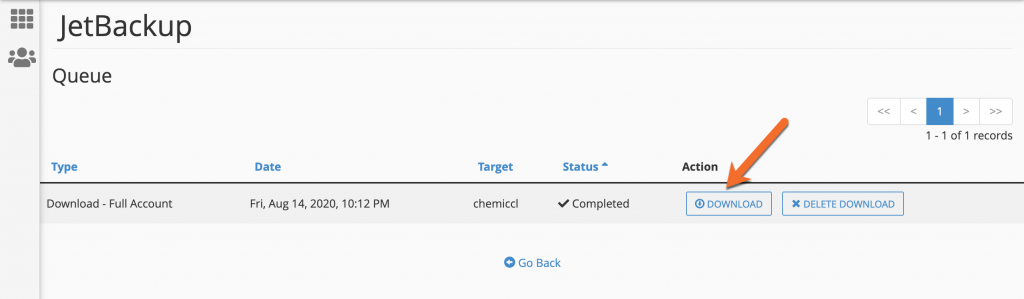
After you have successfully downloaded the backup to your computer, you can click “Delete Download“. This will remove the backup from your hosting account so it’s not consuming any space.
Below is a short animation showing the download process:
It’s that easy!
How to restore File Backups
Have you ever deleted a file and a couple of days later had a client ask you, “Can you send me this file again” and thought, “Oh no! The file is gone!”? Well, fret not! File backups make it super easy to dig in and find exactly the file you need to restore.
1) The first step would be to log into your cPanel.
2) Once logged in to cPanel, in order to restore files or folders on your account, go to JetBackup and click on the File Backups icon.
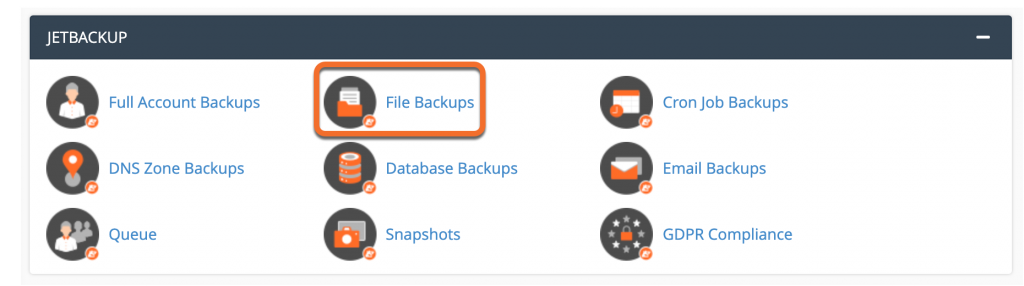
3) In the next window, you will be able to choose your desired restore point (date) to restore from.
Once you’ve decided on the restore date, the next step is to use the File Manager which will help you to browse through your account’s file system.
4) Click on the File Manager under Actions.
In the next window, you will see all the files and folders inside your account’s home directory.
Important Options to Note while using the File Manager
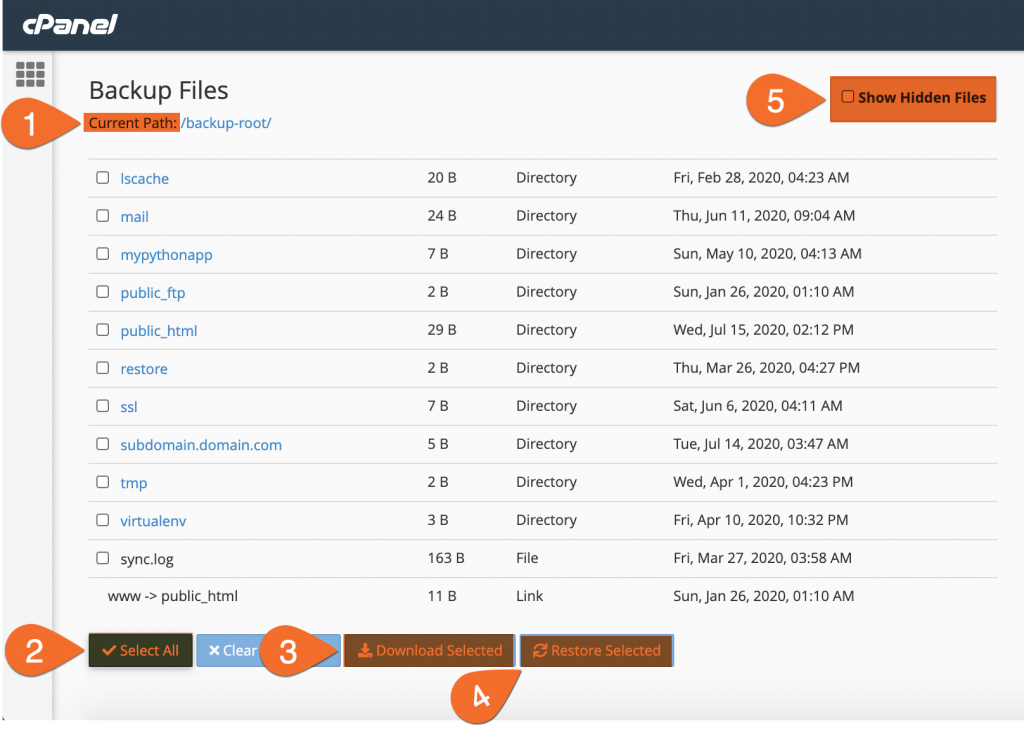
- The current path will reflect the directory you are viewing in the file manager.
- Select all will check all files and folders in the directory for you.
- Download Selected will instruct JetBackup to create a compressed file for you containing the file(s) and/or folder(s) you’ve checked.
- Restore Selected will restore the file(s) and/or folder(s) you have checked to the server just as they were prior to the files being deleted.
- Show Hidden Files instructs the file manager to display system files, which are typically not needed for most backup or restore operations, for your convenience.
Alright! Now that you are familiar with the File Manager options, let’s proceed and do a file backups restore.
In my example, I’ll do a restore for the site on my cPanel’s primary domain. The document root for your primary domain; it’s always the public_html folder.
5) You will see all the files and folders inside your account’s home directory. In my case, I will select only “public_html“.
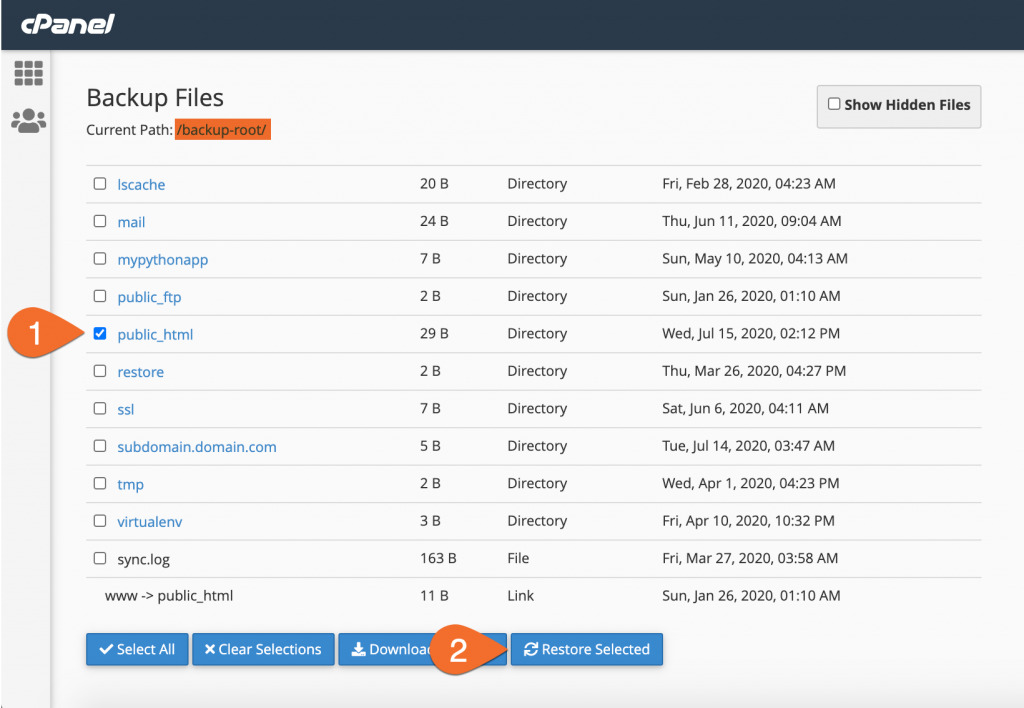
6) Once the public_html folder is selected click on the “Restore Selected” button.
If I wanted to download a backup of the selected folder, I could have checked to Download Selected instead of Restore Selected, and JetBackup would have started to create a backup of that folder. This comes in handy in case you want to do a local download and to check on some of your site’s files before doing a restore.
7) Tick the box Are you sure you want to restore this account?
8) Click on Add to Restore Queue button
9) Once the file backup is initiated, you can view the progress from cPanel’s dashboard > JetBackup > Queue.
10) Wait the restore job to finish.
The queue status “Completed” means that the restore has been successful. If you get the queue status “Failed” you may try another date, or you may contact our Support.
It’s that easy!
How to restore Database Backups
JetBackup makes downloading and restoring databases in your hosting account super simple. If a WordPress plugin has corrupted your database and you need to restore to one from the night before, or the week before, no problem!
1) The first step would be to log into your cPanel.
2) Once logged in to cPanel, in order to restore files or folders on your account, go to JetBackup and click on the Database Backups icon.
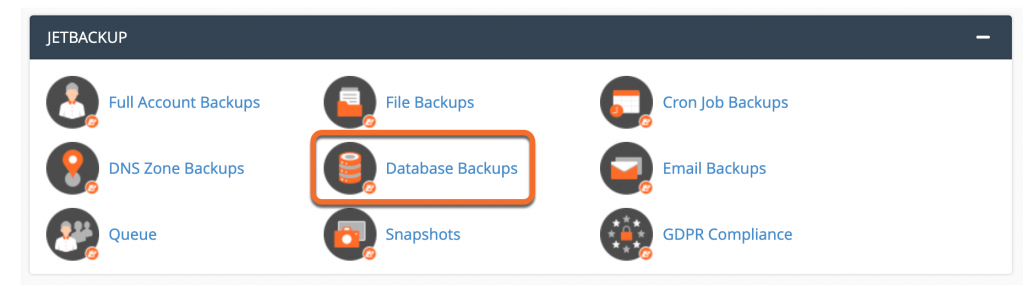
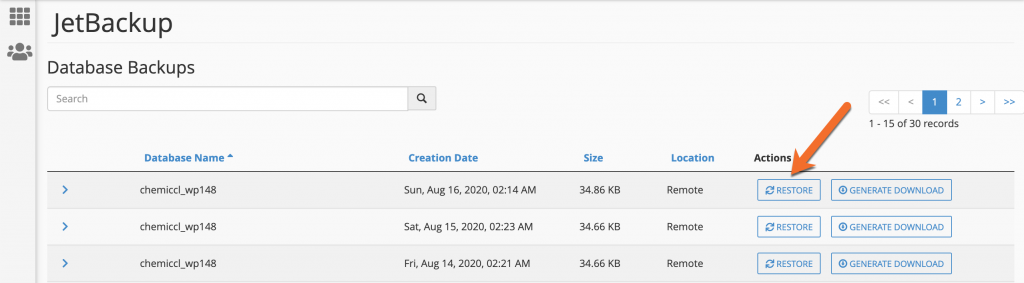
3) In the next window, you will be able to see all your databases and to choose your desired restore point (date) to restore from.
Once you’ve decided on the restore date, the next step is to use the Restore button.
4) Tick the box Are you sure you want to restore this account?
5) Click on Add to Restore Queue button
6) Once the database backup is initiated, you can view the progress from cPanel’s dashboard > JetBackup > Queue.
7) Wait the restore job to finish.
The queue status “Completed” means that the restore has been successful. If you get the queue status “Failed” you may try another date, or you may contact our Support.
It’s that easy!
Similar to Full Account Backups, using Generate Download will instruct JetBackup to create a compressed file containing your database which will be downloaded to your computer.
How to restore Email Backups
JetBackup makes downloading copies of your mailbox very easy. This can be a very useful feature if you are investigating a user’s account for abusive emails or if you are migrating from one email server to another. Downloading mailboxes is very similar to downloading Databases.
1) The first step would be to log into your cPanel.
2) Once logged in to cPanel, in order to restore emails on your account, go to JetBackup and click on the Email Backups icon.
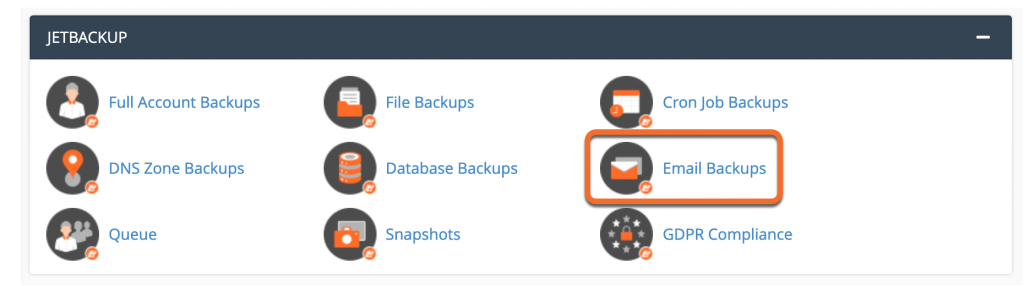
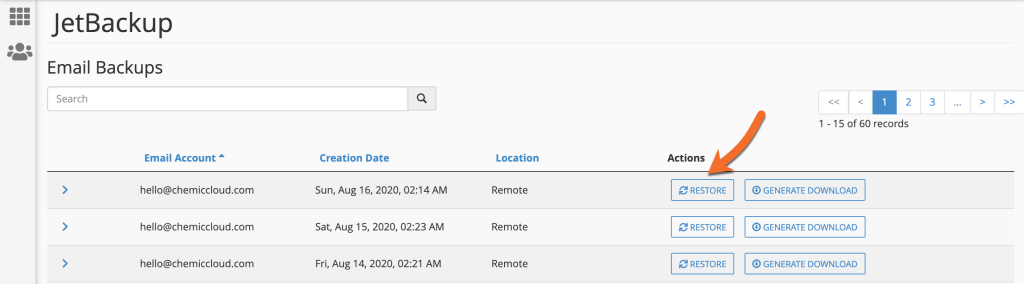
3) In the next window, you will be able to see your email addresses and to choose your desired restore point (date) to restore from.
Once you’ve decided on the restore date, the next step is to use the Restore button.
4) Tick the box Are you sure you want to restore this account?
5) Click on Add to Restore Queue button
6) Once the email backup is initiated, you can view the progress from cPanel’s dashboard > JetBackup > Queue.
7) Wait the restore job to finish.
The queue status “Completed” means that the restore has been successful. If you get the queue status “Failed” you may try another date, or you may contact our Support.
It’s that easy!
How to decompress & navigate a downloaded backup
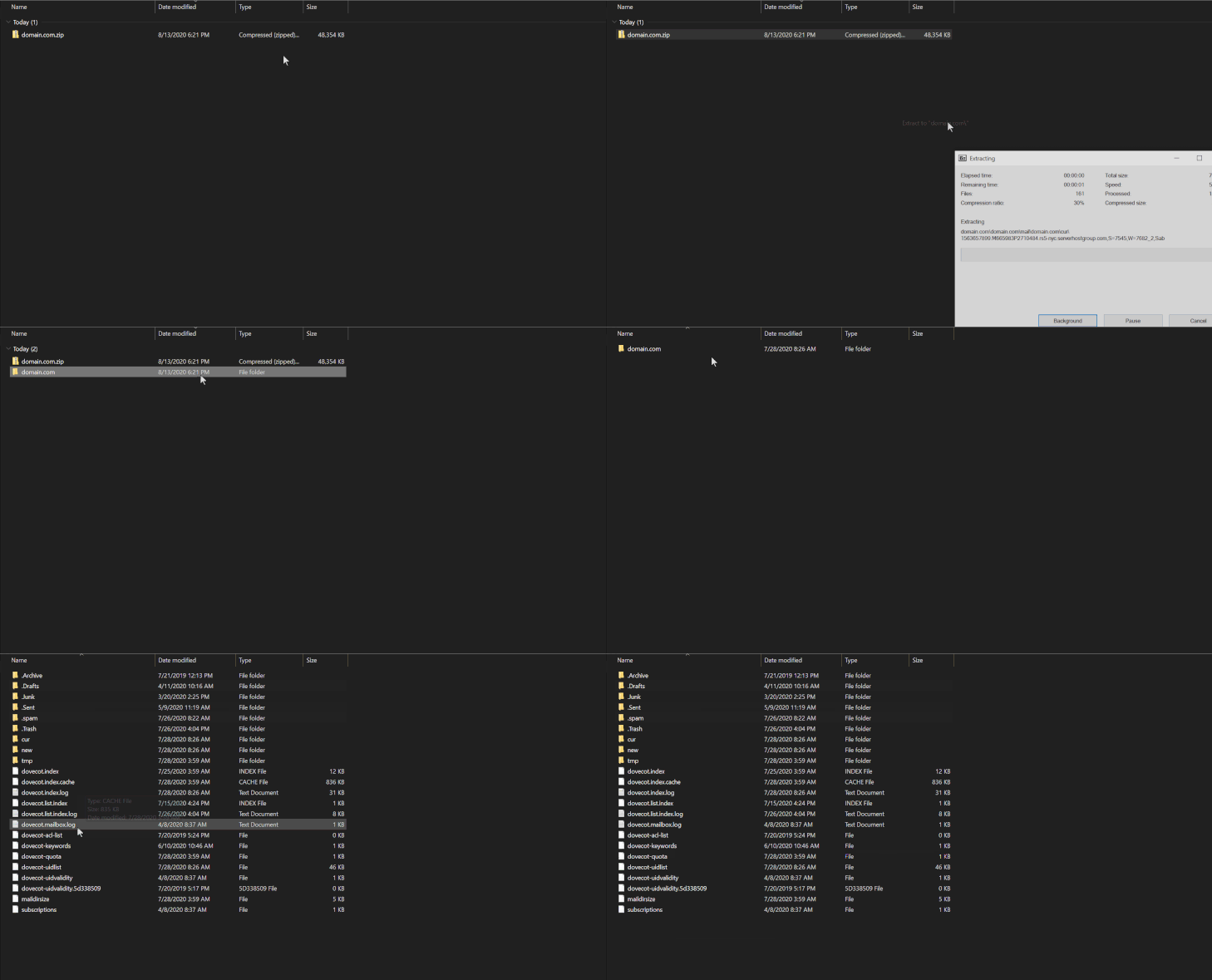
When you download a Full Account Backup (for example), or a backup containing more than one file or folder, or Database Backup, the file will be generated and saved to your computer in the form of tar.gz file. This is a type of compressed file, similar to a .zip file.
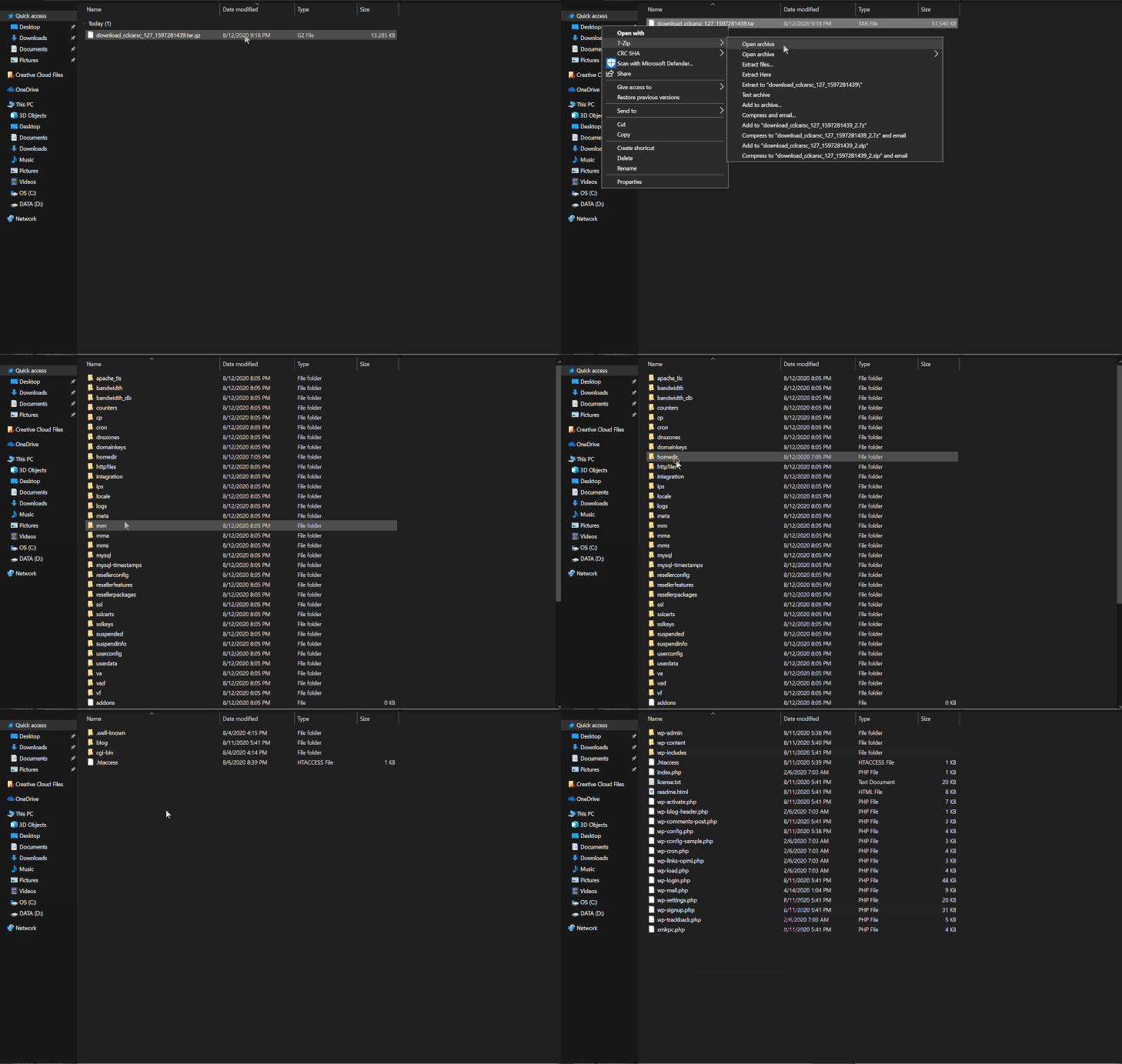
Expanding these files is quite easy. Below, we have a short animation displaying how to decompress a full account backup file and navigate to the public_html folder using Windows 10 and the free compressed file management tool – 7zip.
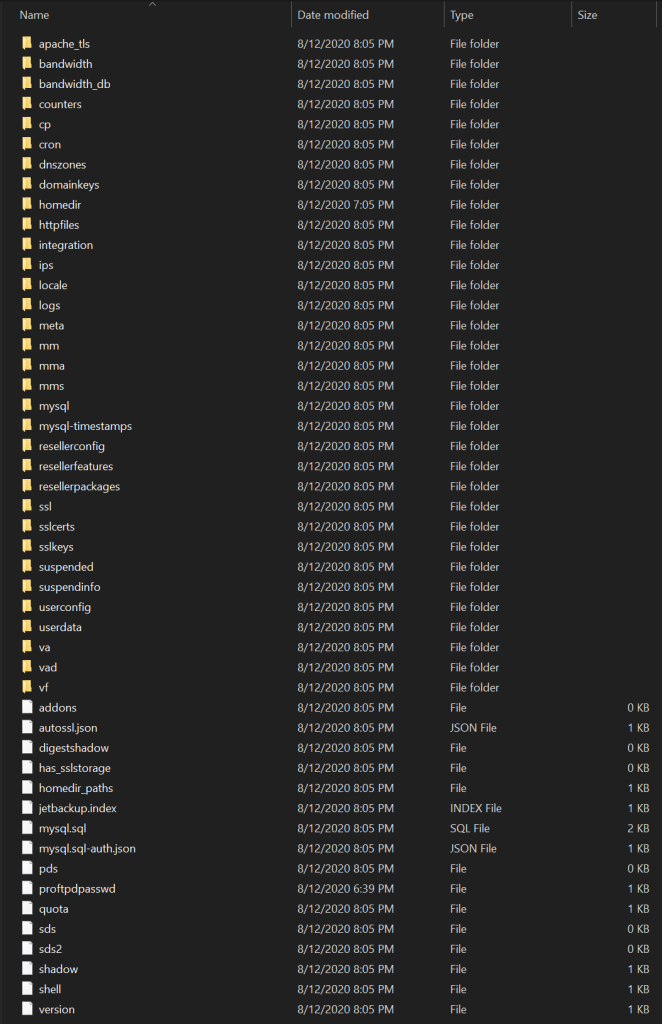
Here is a screenshot of the folder structure of a full account backup when it is decompressed:
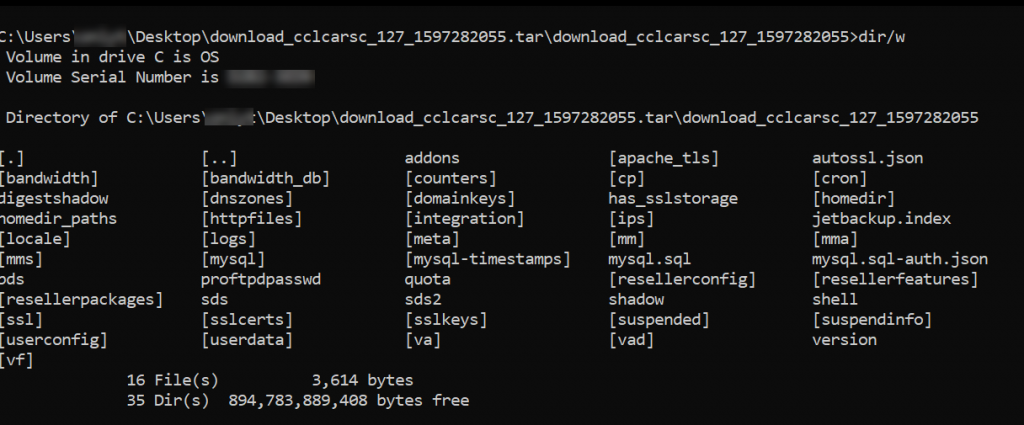
Or, for those who prefer the command line view:
Database Backups
Decompressing a downloaded Database backup is almost identical to decompressing a Full Account Backup, however, instead of a number of folders, each with individual website files, being decompressed, a single sql file will be displayed. See below:
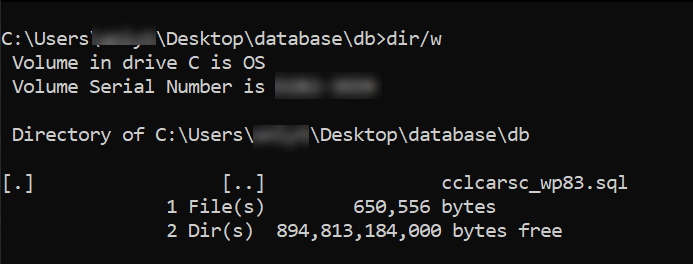
We can see the database file – cclcarssc_wp83.sql has been downloaded to our local computer.
You can save this file in your favorite online storage provider for additional backups if you would like, or you can open the file in an application such as mySQL Workbench and modify or change tables if you’d like.
Email Backups
Downloading email backups are a little different due to the way cPanel reconciles and stores mailboxes. Below is a short animation showing the folder structure of an Email Backup I’ve downloaded and decompressed:
Conclusion
JetBackup provides users with a very powerful set of tools for backing up (for offline storage) and restoring full accounts, individual files and folders, databases, email accounts, and more.
If you have any questions about using one of the options in your JetBackup section of cPanel, especially if you are considering using the restore feature, reach out to our live chat support to have your questions answered!
]]>The cPanel backup interface allows you to generate and download a backup of your MySQL databases. Backing up your website’s database periodically is always recommended, as it can save you from a lot of pain in case anything happens with your data. It is often necessary to take a backup (or “dump”) of an entire database management system along with all databases and tables, including the system databases which hold the users, permissions, and passwords.
1) Log into cPanel.
2) Look for the “Files” section and click on the “Backup” icon.
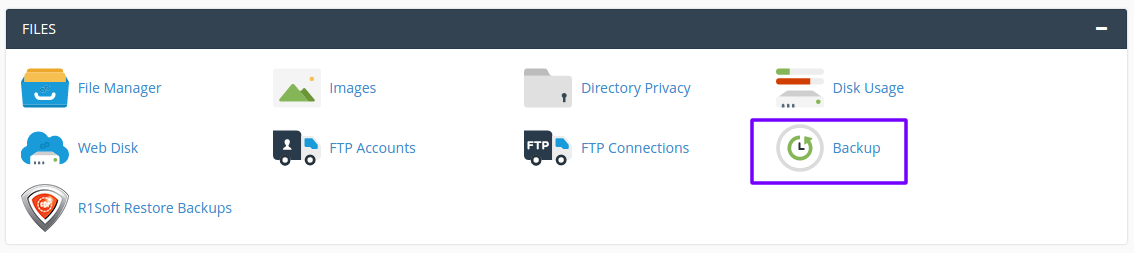
3) In the “Partial Backup” section under “Download a MySQL Database Backup “ click on your database name you want to backup, in this case, it’s chemiclo_demo and the download will start automatically.
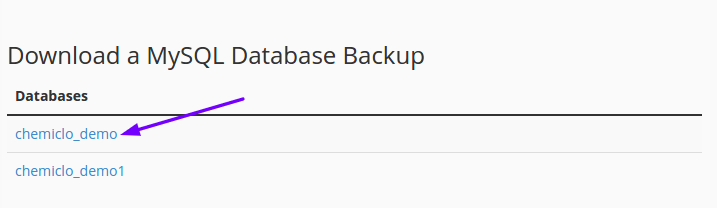
A copy of the database will now to saved on your PC, and you should now see the compressed .sql.gz file in the folder your web-browser downloaded it.
How to restore a MySQL Database Backup
If your database is corrupted or you have removed some useful data, restoring the database from a previous working backup might be a great option to save the day. Luckily this can easily be done by following the next steps:
1) Log into cPanel.
2) Look for the “Files” section and click on the “Backup” icon.
3) In the “Partial Backup” section click the “Choose File” button located under “Restore a MySQL Database Backup “ and select the backup file you want to use from your PC and click “Open“.

4) Now the name of the backup file you selected should be displayed, please double check that this is the right backup and click “Upload“.

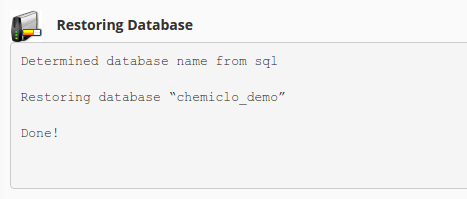
5) A new tab will open showing you information about the restore process.
The cPanel backup interface allows you to generate and download a backup of your Home directory, this will make a copy of all of your files located in your Home directory.
1) Log into cPanel.
2) Look for the “Files” section and click on the “Backup” icon.
3) In the “Partial Backup” section, click the “Home Directory” button to proceed and click “Save As” or select “Save File” in the pop-up that appears.
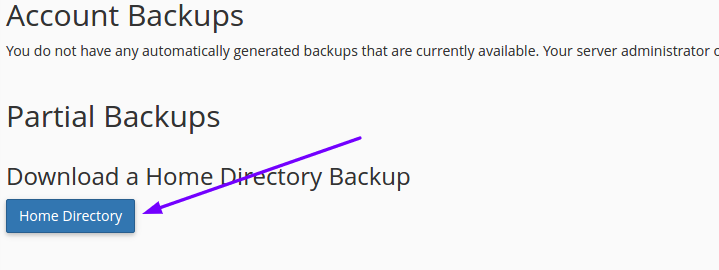
4) Select a destination where you would like to store your home directory backup locally and click “Save“. The backup file created will now be downloaded to the chosen destination in a .tar.gz file.
If you want to generate a full backup of your website, which includes all your website files, emails and databases just follow the instructions provided in this tutorial: Full Website Backup.
How to Restore a Home Directory Backup
A home directory backup can be restored within cPanel, following these steps you can learn how to restore a backup of your Home directory.
1) Log into cPanel.
2) Look for the “Files” section and click on the “Backup” icon.
3) In the “Partial Backup” section, click the “Choose File” button located under “Restore a Home Directory Backup” select the backup file you intend to use from your PC and click “Open”.

4) Now the name of the backup file you selected should be displayed, please double check that this is the right backup and click “Upload“.

5) A new tab will open showing all the files that are currently being replaced.
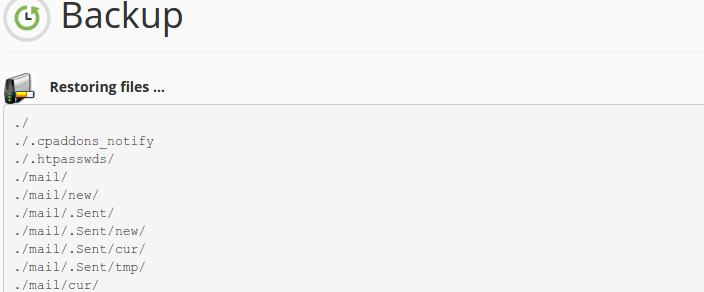
How to create a full cPanel Backup
1) Log into cPanel.
2) Look for the “Files” section and click on the “Backup Wizard” icon.
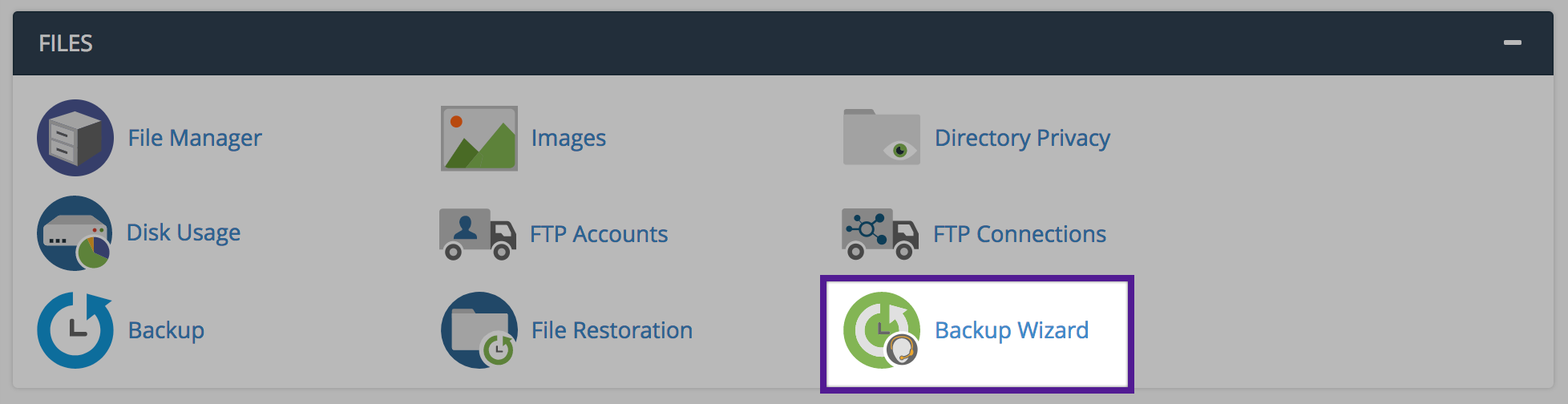
3) In the “Back UP” section, click the “Backup Up” button to proceed.
4) In the next step, you’ll see multiple options to create a Full Backup, an archive of all the files and configurations on your website, or a Partial Backup.
Backup destination:
- Home Directory — If this option is selected the backup will be saved in the /home directory of the server.
- Remote FTP Server — You can select this option if you want to use an FTP to store the backup file on a remote server.
- Remote FTP Server (Passive Mode Transfer) — You can select this option if you want to use passive FTP to store the backup file on a remote server.
- SCP — You can select this option if you want to use SCP to store the backup file on a remote server.
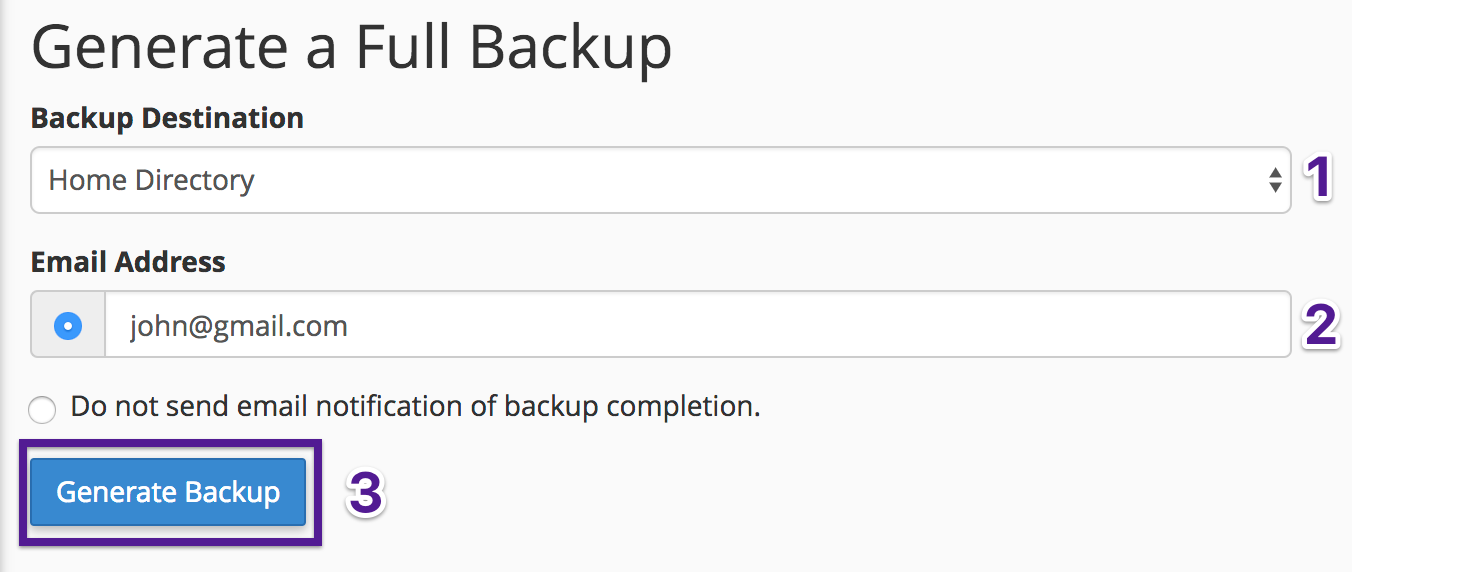
If you want to receive an email notification when the backup is finished just enter your email address. If that’s not the case you can check the box next to “Do not send email notification of backup completion”.
5) Click on the “Generate Backup” button to proceed and allow some time for the backup to finish. An email will be sent to your address if you entered one in the previous step.
How to download the Full Backup
1) This assumes that you are already logged into cPanel.
2) Select “Backups” under the “Files” tab
3) Next click on the “Download a Full Website Backup” button.
4) Under “Backups Available for Download”, click the link for the backup file you want to download.
5) Select the destination on your PC where you would like to save the backup.
]]>